
Download IdleBackup – Automatic, Secure Backup While Your PC Is Idle
Why IdleBackup Is the Smart Choice for Unattended Backups
IdleBackup is a lightweight, free utility that turns every idle moment of your computer into a productive backup session. Instead of letting the CPU sit idle while you step away, the program monitors processor usage and, when it detects that no active tasks are running, silently creates backup copies of the files you designate. The concept is simple but powerful: backup only when the machine is not in use, ensuring that your critical documents, photos, and project files are always protected without slowing down your workflow.
The first run creates a full backup, and subsequent runs are incremental, meaning only the changed files are copied – a strategy that saves both time and storage space. Users can point the program to any local folder or networked drive, set the backup interval in seconds using a mouse‑only interface, and even trigger a manual backup whenever they wish. A built‑in daily logfile records start/stop times, errors, and copy details, giving you full transparency.
In short, IdleBackup provides a “set‑and‑forget” experience, letting you focus on work while it quietly safeguards your data in the background.
Key Features That Make IdleBackup Stand Out
- Automatic idle detection – backs up only when CPU usage falls below a configurable threshold.
- Full first backup followed by incremental updates to minimize storage consumption.
- Mouse‑only interval setting (seconds) – no keyboard input required for quick configuration.
- Support for any destination: local drives, external USB, or network shares.
- Five preset backup profiles that can be saved and recalled instantly.
- Daily logfile generation with start/stop timestamps, error reporting, and copy details.
- Input activity check option to prevent backups during keyboard or mouse activity.
- Drive filter in the explorer tree to hide irrelevant drives for a cleaner UI.
Pros and Cons
- Pros:
- Runs silently in the background without impacting system performance.
- Free, with no hidden fees or subscription models.
- Simple UI – ideal for users who want “set‑and‑forget” backups.
- Incremental backups reduce disk usage and speed up subsequent runs.
- Comprehensive daily logs help troubleshoot any issues quickly.
- Cons:
- Backup interval can only be set in seconds, which may be too granular for some users.
- Lacks advanced scheduling (e.g., specific days of the week).
- No built‑in cloud storage integration; relies on local or network paths.
- Configuration options are limited to source, destination, and interval.
- Interface may feel dated compared to modern backup suites.
IdleBackup delivers exactly what its name promises – automatic, secure backups during idle periods. While it doesn’t boast a flashy UI or cloud sync, its reliability, low resource footprint, and free price tag make it a solid choice for home users and small offices alike.
Step‑by‑Step Installation and How to Get the Most Out of IdleBackup
IdleBackup runs on Windows 7, 8, 10, and 11 (both 32‑bit and 64‑bit). The installer is a single EXE file that can be downloaded from the official website. Follow these steps to install and configure the software:
Installation
- Download the IdleBackupSetup.exe from the trusted source.
- Run the installer; you’ll be greeted by a standard Windows Setup wizard.
- Accept the license agreement and choose the default installation folder (C:\Program Files\IdleBackup) or select a custom path.
- Click “Install” – the process takes less than a minute.
- Once installation completes, launch IdleBackup from the Start menu or desktop shortcut.
First‑Time Configuration
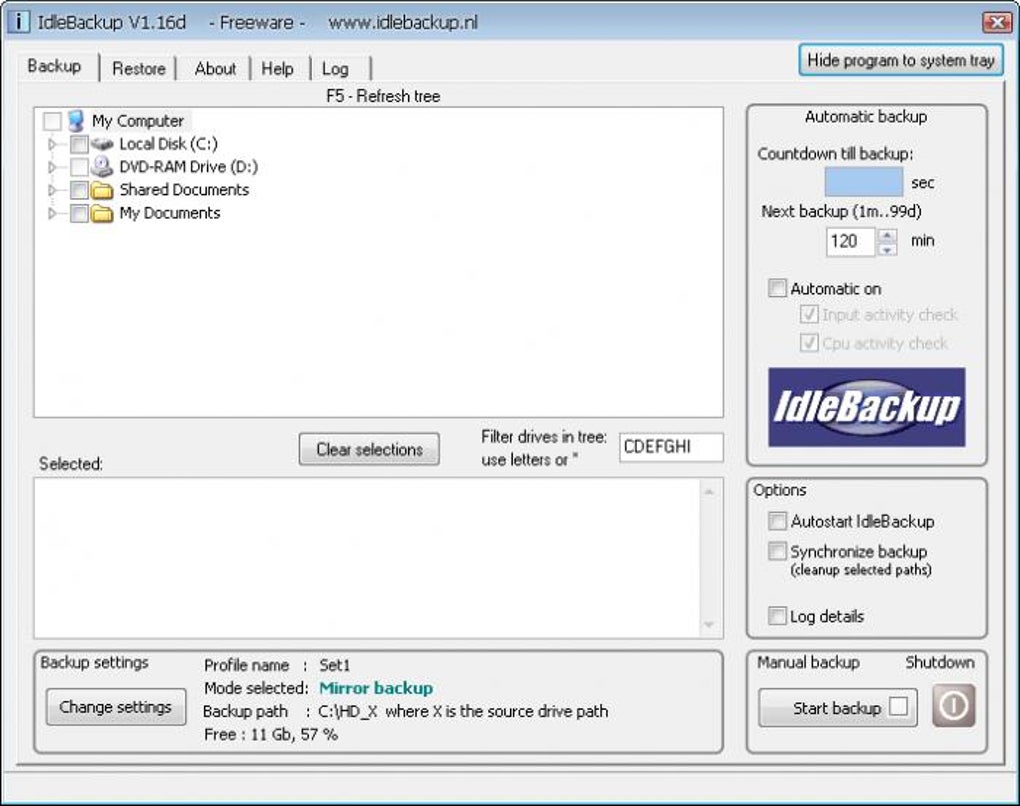
- On launch, the main window appears with three panes: Source Folder, Destination Folder, and Backup Interval.
- Click the folder icon next to Source and navigate to the directory you want to protect (e.g., Documents).
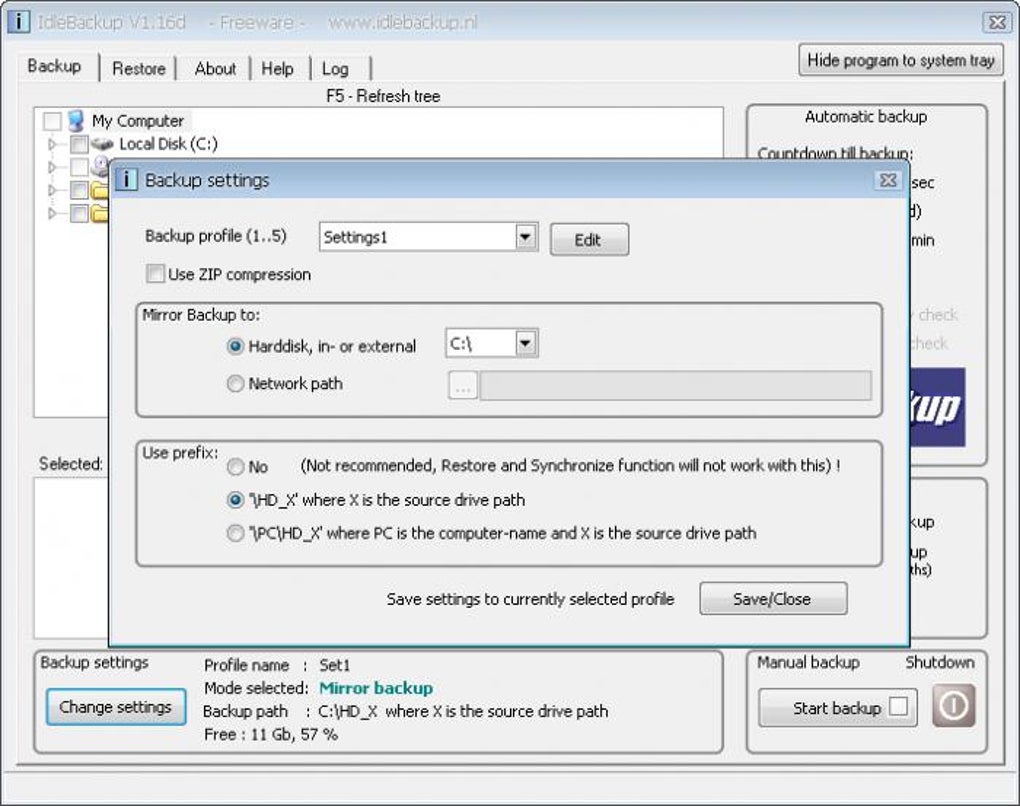
- Click the folder icon next to Destination and select a backup location – this can be another local drive, an external USB, or a mapped network share.
- Set the backup interval by dragging the slider or using the mouse wheel; the interval is displayed in seconds (e.g., 300 seconds = 5 minutes).
- Enable the “Input activity check” if you want the program to pause when any keyboard or mouse activity is detected.
- Save the configuration as a preset by clicking the “Save Profile” button – you can store up to five different profiles for various projects.
Running Backups
IdleBackup monitors CPU usage automatically. When the system is idle for longer than the set interval, the program initiates an incremental backup. You can also start a backup manually by clicking the Backup Now button. The daily logfile is accessible via the “Log” tab, where you can review timestamps, errors, and copied file details. If an error occurs (e.g., destination drive unavailable), the program writes an entry to the log and retries on the next idle window.
Regularly check the log to ensure backups are completing successfully, and consider rotating your backup destinations (e.g., weekly copy to an external drive) for added redundancy.
Frequently Asked Questions and Final Thoughts on IdleBackup
Can IdleBackup back up to cloud storage services like OneDrive or Google Drive?
IdleBackup does not include native cloud integration. However, you can set the destination folder to a local sync folder used by OneDrive, Google Drive, or Dropbox, and the cloud client will upload the files after the backup completes.
Is the software truly free, or are there hidden costs?
IdleBackup is completely free for personal and commercial use. There are no hidden fees, no subscription, and no premium upgrade required to unlock core functionality.
How does IdleBackup handle large files that change frequently?
During an incremental run, IdleBackup copies only the parts of large files that have changed, using a file‑timestamp comparison. This reduces the amount of data transferred and speeds up the backup process.
Can I schedule backups for specific times of day?
IdleBackup relies solely on idle detection and the interval setting. It does not provide a calendar‑based scheduler, so you cannot define exact times. The program will back up whenever the PC is idle for the configured interval.
What happens if the destination drive runs out of space?
If the target location lacks sufficient space, IdleBackup logs an error in the daily logfile and pauses further backups until space is freed or a new destination is selected.
Conclusion – Secure Your Data Without Lifting a Finger
IdleBackup offers a no‑frills, dependable solution for users who want automatic backups without sacrificing performance. By capitalizing on idle CPU cycles, it ensures that your most important files are safely duplicated to a location of your choosing, all while remaining invisible to your daily workflow. The free price tag, incremental backup logic, and detailed logging make it a compelling addition to any backup strategy, especially for home users and small offices that lack complex IT infrastructure.
Ready to protect your data effortlessly? Download IdleBackup now and let your computer work for you while you’re away.







